Free Audio to MIDI Converter
Turn a clear recording into editable notes, then download a Standard MIDI file for your DAW.
Free standard conversion · Audio stays on your device · Sign in before converting or recording
What is an Audio to MIDI Converter
An Audio to MIDI Converter turns notes detected in a recording into editable MIDI data: pitch, timing, duration, and velocity. Unlike audio, MIDI lets you change instruments, transpose melodies, and edit individual notes in your DAW.
This AI converter works in your browser with piano, guitar, and vocal recordings. Sign in to turn a clear recording into a MIDI draft — no plugin or DAW required to convert. The result captures detected notes, not the original sound or every detail of the performance.
Convert Audio to MIDI in Three Clear Steps
Upload or record a clear source
Choose an MP3, WAV, FLAC, or OGG, or record in a supported browser. Sign in before converting or recording. Maximum: 5 minutes and 32 MiB; format support varies by browser.
Clear recordings of one instrument or voice work best. Noise, effects, and overlapping instruments can reduce accuracy.
Let the converter detect notes
The AI estimates pitch, timing, duration, and velocity in your browser. Processing time depends on your device and recording length; the first conversion also loads the model.
Piano, Guitar, and Vocals set the exported MIDI instrument, not detection accuracy. Multi-instrument conversion is not currently available.
Download and refine the MIDI
Download your .mid file and open it in a DAW or MIDI editor. Assign an instrument, adjust notes, and shape the result into your arrangement.
Treat it as an editable draft. Check for missing, extra, or split notes against the original recording.
Why this Audio to MIDI Converter works for real sessions
Convert MP3 to editable MIDI notes
Turn a clear MP3 recording into notes you can edit in your DAW. Capture a melody or single-instrument idea, then review the detected pitches, timing, and velocities before arranging.
Start with a clean WAV recording
If your recording software offers uncompressed WAV, use it to avoid an extra lossy compression step. A clear source matters more than the file extension — converting an existing MP3 to WAV will not restore lost detail.
Turn singing or humming into MIDI
Use a clear recording of yourself singing or humming to sketch a melody as MIDI. Assign an instrument in your DAW and build an arrangement around it. Vocal mode uses the same detection model as Piano and Guitar.
Record an idea in your browser
Capture a melody without opening a separate recording app. Sign in, allow microphone access, and record in a supported browser. A quiet space and one clear instrument or voice give you a better starting point.
Convert in your browser
No plugin or desktop software is required to convert. Standard conversion processes audio on your device; the first run loads the AI model. Download the MIDI when processing is complete.
Choose from four audio formats
Start with MP3, WAV, FLAC, or OGG without first converting everything to MP3. Decoding support depends on your browser. If a file cannot be read, try an uncompressed WAV export from the original source.
Export a standard MIDI file
Download a standard .mid file for use in compatible DAWs and MIDI editors. Change instruments, adjust notes, and continue working with the file independently of this website.
Who gets the most from audio to MIDI conversion

Songwriters capturing melodies
Hum a melody into your phone, then turn the recording into a MIDI draft. Review the notes, assign a piano or synth in your DAW, and start building chords and lyrics around the idea instead of entering every note by hand.
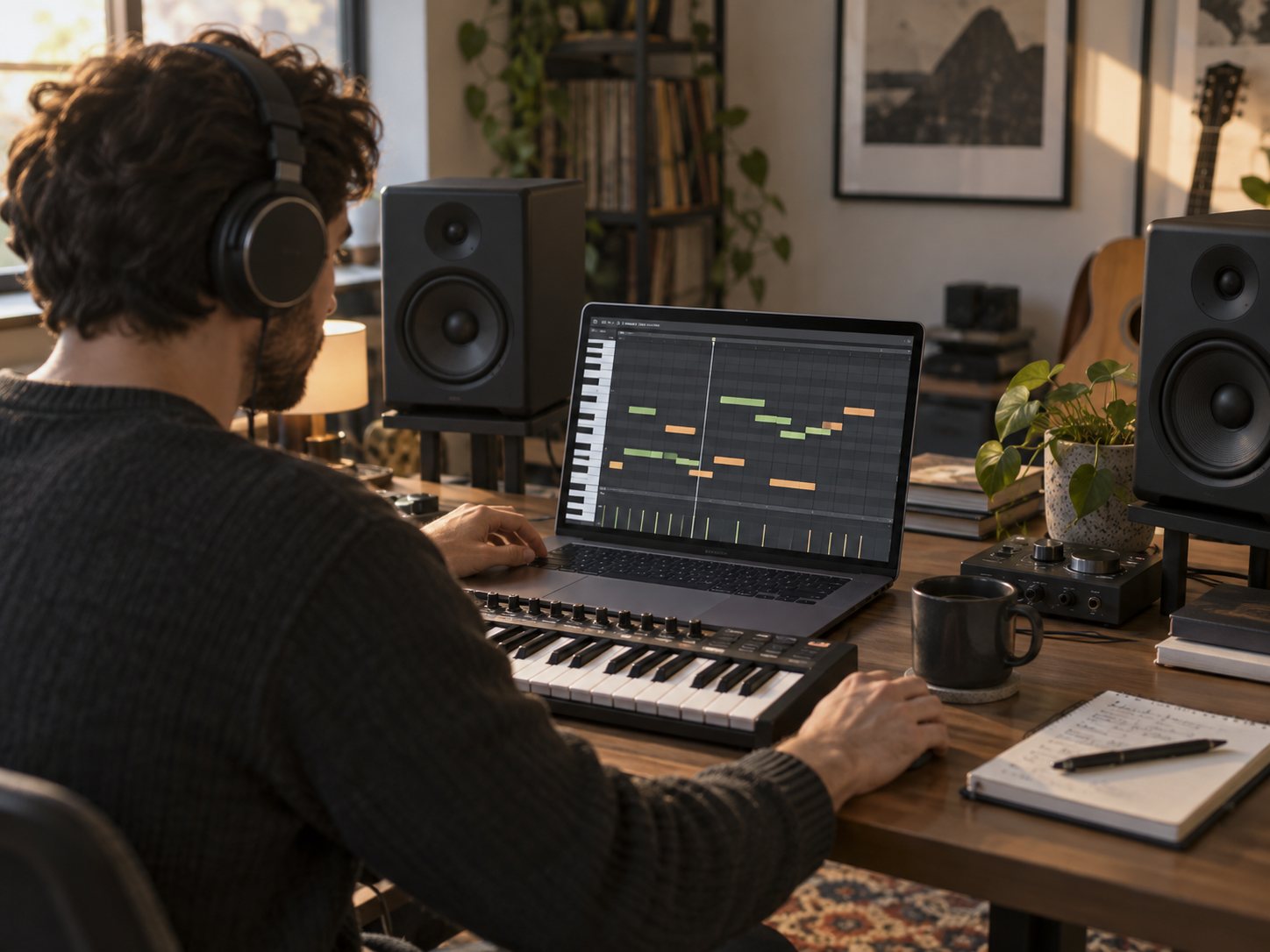
Producers remaking riffs and loops
Record a riff, convert it to MIDI, and re-voice it with a virtual instrument in your DAW. Change the synth patch, layer strings, shift the octave, or quantize the timing. Your recorded idea becomes material you can edit and arrange beyond its original sound.

Vocalists building tracks around melodies
Start with a clear recording of yourself singing or humming, even if you do not play piano or guitar. Convert it into a MIDI draft, check the detected notes, and use the melody to guide chords, bass lines, and instrumentation in your DAW. Vocal mode uses the same detection model as Piano and Guitar.
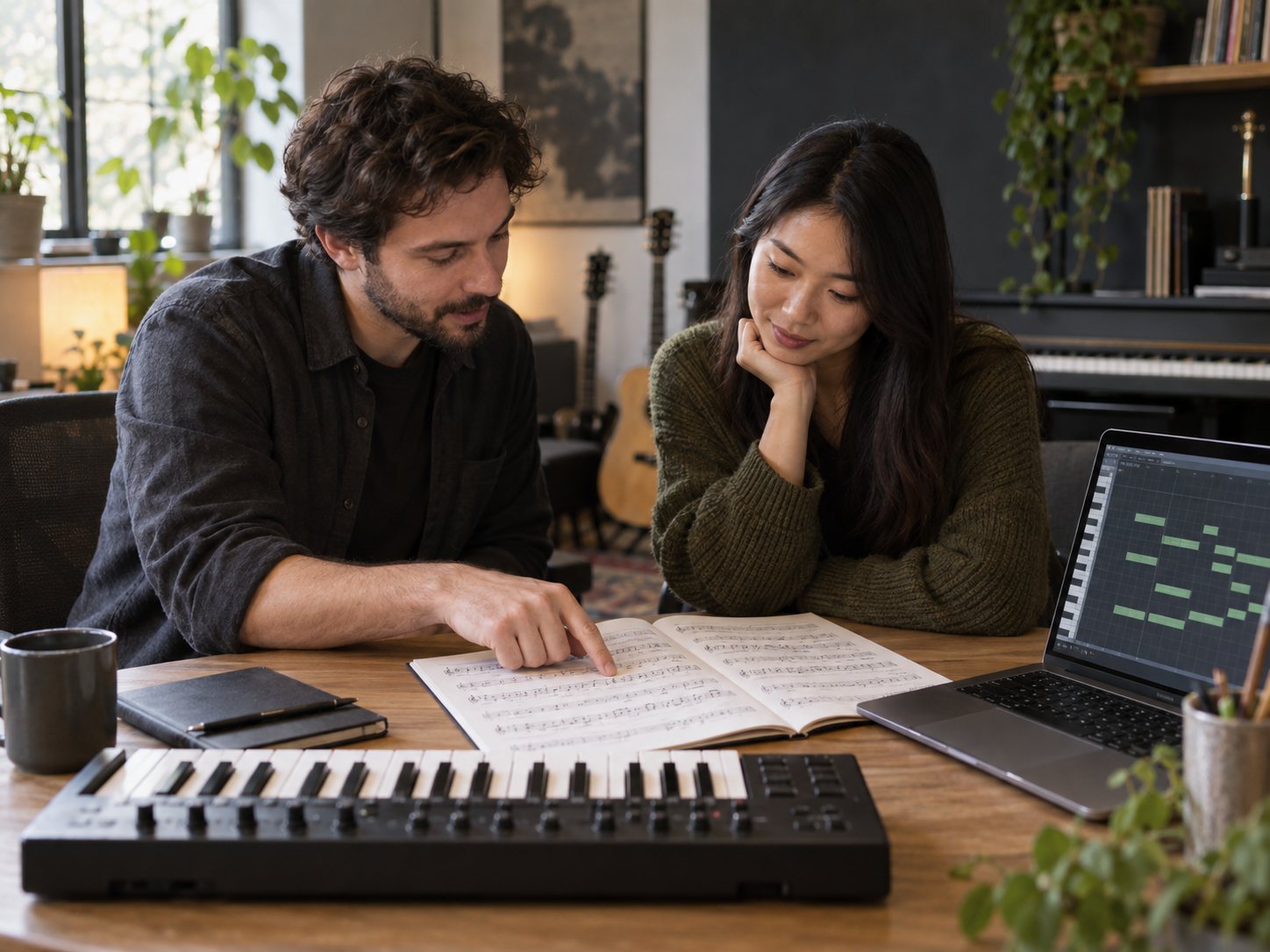
Educators and transcribers
Use a first-pass MIDI transcription as material to inspect, discuss, and correct. Import it into compatible notation software, compare it with the recording, and refine pitches, timing, and phrasing. It provides a starting point for listening practice and score preparation, not a finished score.
Audio to MIDI Converter FAQ
What is an Audio to MIDI Converter?
An Audio to MIDI Converter turns notes detected in recorded audio into MIDI data. MIDI describes which notes to play, when they start, how long they last, and their velocity; it does not contain the original sound. This tool uses AI to create a Standard MIDI file. Open it in a compatible DAW or MIDI editor to change instruments, adjust tempo, correct notes, or transpose a melody.
Is this Audio to MIDI Converter free?
Yes. Standard conversion is free and does not require a paid subscription or payment card. You need to sign in before converting or recording. It uses Spotify Basic Pitch in your browser on your device, rather than a free conversion API. Multi-instrument conversion is not currently available.
How accurate is audio to MIDI conversion?
Accuracy depends on the source recording. A clear single-instrument or vocal recording gives the model a better starting point. Reverb, distortion, dense chords, overlapping instruments, and background noise can cause missing, extra, or split notes. Treat the result as an editable draft and compare it with the original recording. There is no guaranteed accuracy percentage or cleanup time; processing time also depends on recording length and your device.
Does it work for full songs and polyphonic audio?
The model can detect polyphonic notes, such as chords played on one instrument. This is different from separating several instruments into individual MIDI tracks. Multi-instrument mode is not currently available, and full-band recordings may produce mixed or inaccurate notes. For a more useful draft, choose a clear recording of one instrument or voice. Files must be no longer than 5 minutes and no larger than 32 MiB.
Can I edit the MIDI file after conversion?
Yes. Download the .mid file and open it in a compatible DAW or MIDI editor. You can correct pitches, adjust timing and note lengths, change velocities, quantize, transpose, and assign different instruments. Review the transcription before using it in an arrangement; the amount of editing depends on the recording. The MIDI contains note data, not the original audio.
What audio formats are supported?
The file picker accepts MP3, WAV, FLAC, and OGG. You can also record directly in a supported browser after signing in and allowing microphone access. Decoding support varies by browser; if a file cannot be read, try an uncompressed WAV export from the original source. Files can be up to 5 minutes and 32 MiB. Video uploads and automatic audio extraction from MP4, MOV, or WebM video are not supported.
What about privacy — what happens to my audio after I upload it?
For standard conversion, choosing a file does not upload its audio to our server. The audio is processed locally in your browser. If sign-in is needed, the selected file may be saved in this browser to restore your draft afterward. That saved draft expires after one hour; it is removed when restored, and expired drafts are cleaned up the next time the tool accesses draft storage, rather than by a background timer. The MIDI is created locally and saved to your device when you download it. You can also clear this site’s browser data to remove saved drafts.
Turn Your Audio into Editable MIDI
Start with a clear single-instrument recording and refine the notes in your DAW.